
Now that serious business has resumed, it can be helpful to think about how to define a framework that suits everyone. Microsoft has very recently announced an improvement to its parental control system. Let’s take the opportunity to check how it works, as well as what Sony offers on PS4 and Nintendo on Switch.
Let’s start by reminding ourselves that parental control remains a tool, and never replaces the one truly 100% effective method: dialogue. It is the parents’ job to set limits and the children’s job to check whether they hold (by testing what happens when they are broken). Parental control is never entirely reliable and of course will not withstand a little smart aleck who manages to find the code. Still, avoid setting it to your postcode or your year of birth, won’t you. But since parents cannot check everything or run after their offspring all the time, family settings also make it possible to work on the question of trust progressively. The rules can always be discussed and drawn up as a family. But it is the Great Parental Council that will always have the last word.
The three main game consoles on the market each have configuration tools that allow or forbid different kinds of access, and limit time and purchasing options. Each of these systems is easy to use. You generally just have to follow what is written on the screen. But if it does take some effort, that is for the good, too. Having to manage the frustration of stopping playing is also a way of gradually learning to manage oneself.
Microsoft – Xbox One and Windows 10

Microsoft’s recent improvements were announced in the video below, but apparently only for its English-speaking customers. Unfortunately there is no French equivalent. Nevertheless, YouTube subtitles can make up for any difficulties caused by the language of Shakespeare.
In general, all the details are explained on this page. But we can already see here how it works.
You must therefore start by creating a profile for each child who uses the console or the computer via Microsoft’s platform. While the process is a little laborious at first, it then has the big advantage of letting you configure everything according to each person’s use. For example, you can distinguish the time allowed for playing a game, watching videos, or carrying out updates.
It is also possible to set very precise usage schedules, which can therefore vary from one day to the next, as illustrated below.
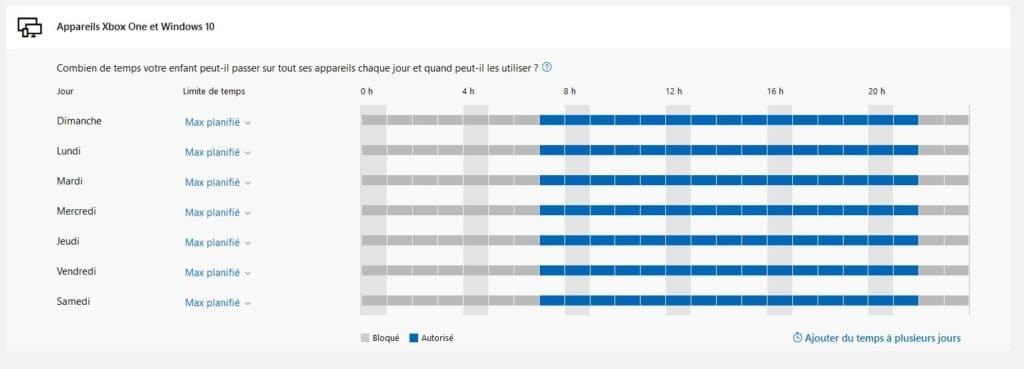
We can commend the particularly intuitive and comprehensive way all these features are managed. On the other hand, if you watched the video above, you may have smiled ironically at the fact that neither the mother nor her daughter talk to each other to discuss these limits. When the alarm goes off, it is always preferable to seize the opportunity to start a discussion. Going through the app can simplify things, but face-to-face is always more advisable.
Sony – PS4
At Sony it isn’t very complicated either, but you have to go step by step.
First, start by creating an account for yourself, following this procedure
Select > when your PS4 starts up and follow the on-screen instructions to link it to an account.
It is not necessary to create a PSN account; that is only useful for access to online features, which is not needed to use parental control.
You then need to lock this account with a four-digit code. Again, be inventive and do not give this code to your offspring. This is your personal code.
Check whether your children already have an account of their own on the console (which is very probably the case). The aim of this step is to define what your child will or will not have access to.
Go to the settings (central button on the controller, go up one level and go all the way to the right to “Settings”). You will see that the Parental Controls/Family Management tab is the second in the list. Not hard to find!
Once in this menu, you will see that next to your account is the label “Family Manager” (so, who’s the boss, eh?).
From there, you will have to set a second code. While the first one locked your profile (and so stopped your child from using it or creating a new one), this one defines access to parental control.
From here, you can set the age rating of games, access to the Internet and to Blu-Ray/DVDs, and the length of use. Unlike on the Xbox One, timing is done here in one block. As soon as use begins, the countdown starts, whether it is playing time or time in the menu. You can then decide whether, once the time is reached, the console locks, or whether an overrun reminder is shown every five minutes.

One additional feature: it is also possible to restrict access to virtual reality (PSVR).
More information can also be found here.
Nintendo – Switch
Finally, at Nintendo, the solution is the simplest to set up. Its particularity is that control is carried out via an app on your smartphone. So start by downloading it.


You then need to link the Switch console to the app. You can also add several consoles (if each child in your family has their own console, for example).
On your phone, you will have access to a detailed usage history, as well as to time and content settings. You will receive a notification on your phone if the limit is exceeded and can decide to lock the console if necessary.
More information can also be found here.

You can choose to have the console lock once the available time is reached, or to have an overrun notification shown every five minutes.
One last thing…
Some of these controls can be quite intrusive, or experienced as such. At Microsoft, for example, it sometimes goes a little too far. You can, among other things, track your children’s movements if they have a Windows or Android phone. Let’s not forget that childhood is also about becoming independent and gradually distancing oneself from one’s parents. Remember when you went off to explore the playground or the wasteland with your friends: would you have liked your parents to follow you everywhere?
He works in Switzerland on the topic of excessive screen use, notably with families. He uses video games as a therapeutic tool and keeps a close eye on developments in the medium (new releases, trends, impacts, etc.). Alongside his professional activities, he voluntarily runs a game review website (www.semperludo.com), as well as a nationwide gamers’ association (www.gamingfederation.ch), through which they aim for responsible video game practice.
Twitter: @niels_weber, @semperludo, @GamingFed